
A guided look at how organizations securely onboard Windows, Apple, and Android devices.
Every organization reaches a point where unmanaged devices, whether corporate or BYOD, quietly become a risk. In a fast paced working environment, where for some organizations remote work has also become the norm, laptops are provisioned quickly, mobile devices are added on the go as new employees onboard, and tablets move between teams. Without a defined MDM policy and an inconsistent enrollment approach, visibility slowly fades and security controls become reactive. This is where device enrollment restores the order, subtly and without interrupting how people work.
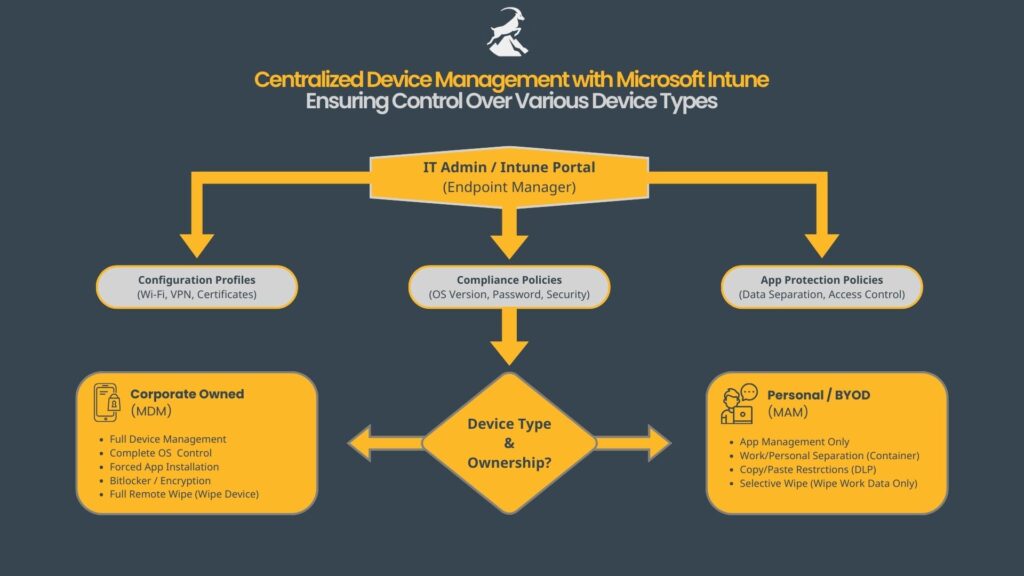
Understanding the Role of Microsoft Intune
Microsoft Intune is designed to make the transition to secure device management smooth. Rather than forcing a single strict and rigid path, it provides a framework which enables different platforms to enter management in a manner that feels natural to users while still meeting security and compliance goals and expectations set by the organization itself and different global standards and frameworks.
Preparing the Enrollment Foundation
Before the device enrollment process begins, the host environment itself must be prepared beforehand. Intune license(s) must be obtained, tenant identities must exist in Microsoft Entra ID, and device enrollment has to be permitted for users that are to be included into scope. This is the stage, which is often overlooked by organizations because it happens entirely in the background, however this stage defines who is trusted within the organization to onboard devices and how those devices will be governed from the start.
Once the foundation of governance is established, enrollment becomes less about configuration and more about alignment.
Platform-Specific Enrollment Experiences
Windows Enrollment Experience
Windows devices, due to their native Microsoft environment, tend to blend into device management almost invisibly. Once a user signs in, the pre-defined policies automatically begin applying, encryption is activated using Bit locker, and the required applications for the respective organization install without requiring user input. When it comes to corporate devices, Windows Autopilot can take this process even further by transforming the general enrollment experience into a well structured and guided onboarding experience that feels intentional rather than technical. The devices are moved from factory state to compliant, secure and managed endpoints with minimal user involvement.
Apple Device Enrollment Experience (macOS, iOS, iPadOS)
Apple devices adapt a different enrollment pattern when compared to Windows. macOS, iOS, and iPadOS rely on Apple’s own management services to establish trust with the tenant environment. Certificates are exchanged, followed by an optional pre-registration of the devices through Apple Business Manager, this provides enrollment confirmation of ownership rather than a manual setup process. When done correctly, users experience this as a brief approval step towards compliance, while organizations gain supervised control through encryption enforcement, and policy consistency.
Android Enrollment Experience
Android device enrollment introduces flexibility by design. Some devices remain personal, and are protected through work profiles that separates confidential corporate data from private use. Alternatively, other devices can be fully managed and supervised from the moment they are activated. Android Enterprise allows both approaches to coexist, which enables organizations to be flexible while adapting enrollment to real-world scenarios rather than forcing uniformity.
Compliance as a Continuous Checkpoint
Regardless of the platform or OS, compliance continues to act as the silent gatekeeper. All devices are evaluated against baseline expectations and requirements defined by measures like disk encryption enforcement, OS support, and existence of security controls. This practice also aligns with leading standards and frameworks such as ISO 27001, SOC 2 etc. Devices that meet these requirements gain access to secure device management seamlessly, while devices that do not are guided back into compliance without manual intervention.
Conditional Access and Secure Access Control
Conditional Access is the one of the key enablers to complete the journey of secure device management. Instead of treating device management as an isolated task, Conditional Access ties the outcomes of the process directly to access control and decisions. It ensures that only compliant devices reach corporate resources such as the shared cloud environments, and this is the stage where Intune stops being a simple configuration tool and becomes a vital robust security control.
The Goal of a Consistent Enrollment Strategy
The main goal of Intune is not strict enforcement, but it is rather to achieve consistency across. When device enrollment becomes seamless, support effort decreases, audits become easier, and users start trusting the system because it works quietly in the background without causing disruptions to daily work life.
The checklist below highlights this process in a concrete way. It is not meant to replace understanding, but to ensure that each part of the journey is well accounted for by everyone, regardless of platform.
Device Enrollment – To-Do Checklist
Windows (10/11)
- ☐ Enable Windows enrollment in Intune
- ☐ Enable automatic MDM enrollment for users
- ☐ Create and assign Windows compliance policy
- ☐ Assign required apps (Company Portal, security tools)
- ☐ Create and assign Autopilot profile (optional)
macOS
- ☐ Upload Apple MDM Push Certificate
- ☐ Enable macOS enrollment in Intune
- ☐ Create and assign macOS enrollment profile
- ☐ Assign Company Portal app
- ☐ Enroll test device via Company Portal
- ☐ Verify device is Compliant and FileVault enabled
iOS / iPadOS
- ☐ Upload Apple MDM Push Certificate
- ☐ Enable iOS/iPadOS enrollment in Intune
- ☐ Configure Apple Business Manager + Automated Device Enrollment (optional)
- ☐ Create and assign iOS/iPadOS compliance policy
- ☐ Assign Company Portal app
- ☐ Enroll test device (Company Portal or ADE)
- ☐ Verify device is Compliant
Android
- ☐ Connect Android Enterprise to Intune
- ☐ Select enrollment type (Work Profile / Fully Managed / COPE)
- ☐ Create and assign Android enrollment policy
- ☐ Create and assign Android compliance policy
- ☐ Assign required apps
- ☐ Enroll test device (QR / Token / Company Portal)
- ☐ Verify device is Compliant
Final (All Platforms)
- ☐ Confirm device ownership (Corporate / Personal)
- ☐ Confirm compliance status as Compliant
- ☐ Verify encryption enabled
- ☐ Confirm Conditional Access allows access only from compliant devices